
The Box Library lets you save commonly used package dimensions in ShipTime so they can be quickly selected when creating future shipments.
Keeping frequently used boxes saved can reduce repetitive data entry and help maintain consistent package information when quoting and shipping.
Accessing Your Box Library
- Sign in to your ShipTime account.
- Go to Settings > Boxes.
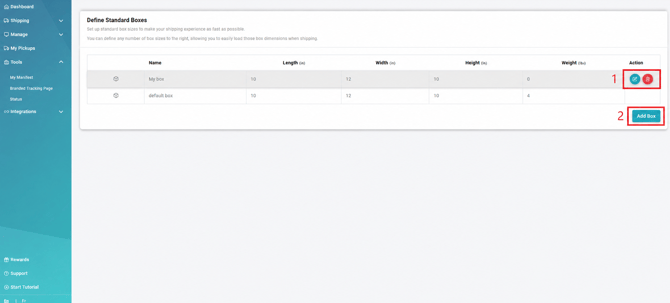
- Use the available options to add, edit, or remove saved boxes.
Box Library Actions
- Add Box: Create a new saved box by entering its name and dimensions.
- Edit: Update the name or dimensions of an existing box.
- Delete: Remove a box you no longer use from your Box Library.
Using a Saved Box
Once a box has been saved, it can be selected from the Box Library when entering package details during shipment creation.
This can help you:
- enter frequently used package dimensions more quickly
- reduce repetitive data entry
- maintain consistent dimensions for commonly used packaging
- speed up the quoting and shipment-creation process
Have a Large Box Library?
If you have a large number of boxes to add, complete the ShipTime box upload template and send it to techsupport@shiptime.com.
Once the required box information has been completed, the ShipTime Technical Support team can assist with uploading it to your account.
Download: Box Library Upload Template
Need Help?
If you have questions about setting up or managing your Box Library, contact our Heroic Support™ team.
For assistance with a bulk box upload, email techsupport@shiptime.com.