
You can connect your BigCommerce store to ShipTime by creating a BigCommerce API account and adding the required credentials to ShipTime.
Start the integration in ShipTime
- Log in to your ShipTime account.
- Go to Integrations > New Integration.
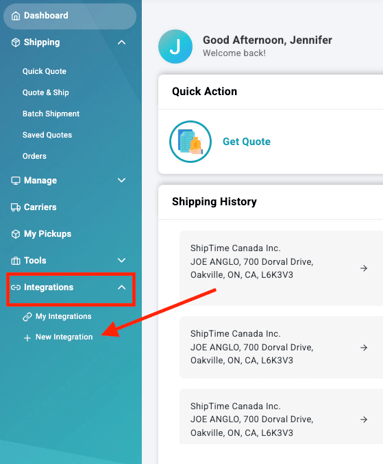
- Select Connect to BigCommerce.

Create an API account in BigCommerce
- Open a new browser tab and log in to your BigCommerce store.
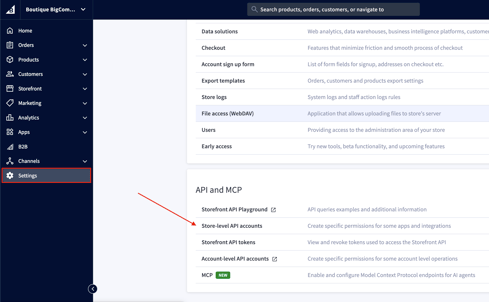
- In the left-hand menu, go to Settings.
- Scroll down to API and MCP
- Select Store-level API accounts.
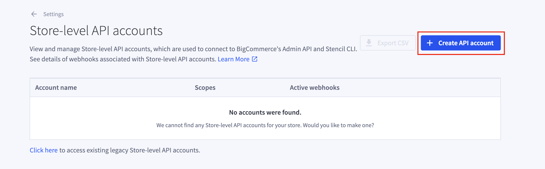
- Select Create API Account, then choose V2/V3 API Token.
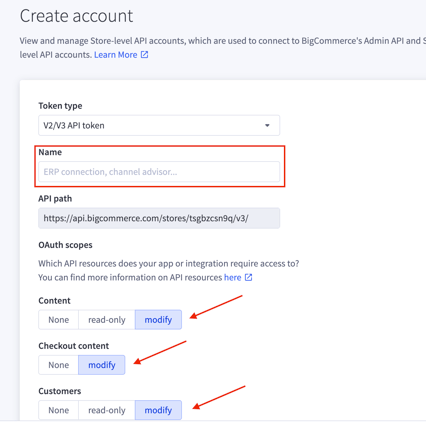
- Enter a name for the API account, such as ShipTime.
- In the permissions section, select the right-most permission option available for each section, such as Modify or Manage.
- Select Save. Keep this window open!
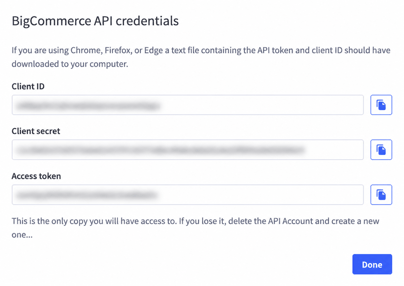
Add your BigCommerce credentials to ShipTime
- In BigCommerce, copy the Client ID.
- Return to the ShipTime tab and paste the Client ID into the appropriate field.
- Enter a Store Name.
- Return to BigCommerce and copy the Access Token.
- Return to ShipTime and paste the Access Token into the appropriate field.
- Return to BigCommerce and copy your Store URL from the BigCommerce admin page.
- Return to ShipTime and paste the Store URL into the appropriate field.
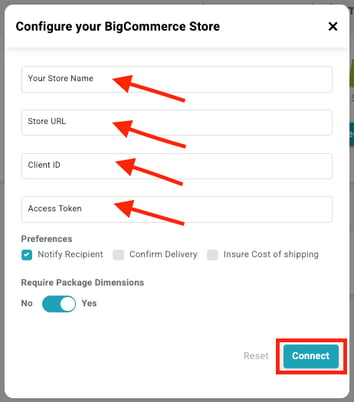
Complete the connection
- Select Connect.
- When the confirmation window appears, select Start Sync.
Your BigCommerce store should then begin syncing with ShipTime.
Need help?
If you have trouble connecting BigCommerce or configuring the API credentials, contact our Technical Support team at techsupport@shiptime.com.
Not using ShipTime yet? Create your free ShipTime account to access discounted rates from leading couriers, all in one platform.