
You can connect your Ecwid store to ShipTime to sync your store with your ShipTime account and configure shipping preferences for your orders.
Connect Ecwid to ShipTime
- Log in to your ShipTime account.
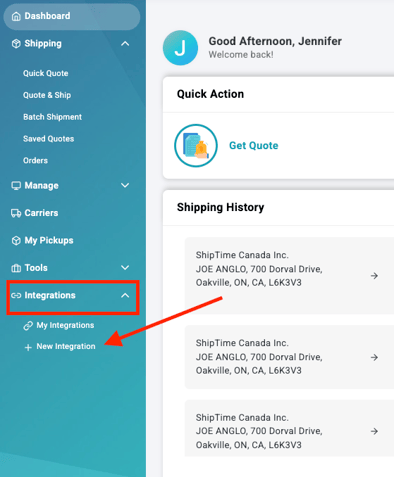
- From the ShipTime dashboard, go to Integrations > New Integration.
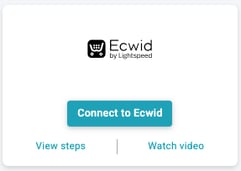
- Select Connect to Ecwid.
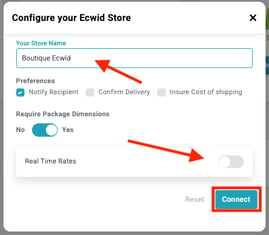
- Enter your Store Name and Store URL, then choose your customer notification preferences.
Important: Store Name should not contain symbols such as apostrophes. Use letters and numbers only. - Enter the default package dimensions:
- Length
- Width
- Height
These dimensions are used only when product dimensions are missing.
- Select any shipment preferences you want to apply:
- Signature Required
- Include Residential Surcharge
- Include Insurance
- Choose how ShipTime should calculate shipping rates:
- Using individual item dimensions, or
- Using packaged items and boxes saved in your Box Library
When packaged-item quoting is selected, ShipTime checks your saved boxes to determine which box can accommodate the items in the cart and calculates the quote using that box.
- Enable Handling Fees if you want to include an additional handling amount in your shipping rates.
- Select Connect when your settings are complete.
Authorize ShipTime in Ecwid
- Log in to your Ecwid store when prompted.

- Select Accept to allow the ShipTime application to connect to your Ecwid store.

Need help?
If you have trouble connecting your Ecwid store or configuring the integration, contact our Technical Support team at techsupport@shiptime.com.
Not using ShipTime yet? Create your free ShipTime account to access discounted rates from leading couriers, all in one platform.