
You can customize the default size of shipping labels generated through your ShipTime account.
This is especially useful if you print labels using a thermal printer, such as a 4" × 6" format, or a standard office printer using Letter-size paper.
How to Change Your Default Label Size- Log in to your ShipTime account.
- Select Settings from the main navigation menu.
- Select Preferences & Defaults.
- Under the General section, locate Preferred Label Size.
- Choose your preferred label format from the available options.
- Click Save to apply your changes.
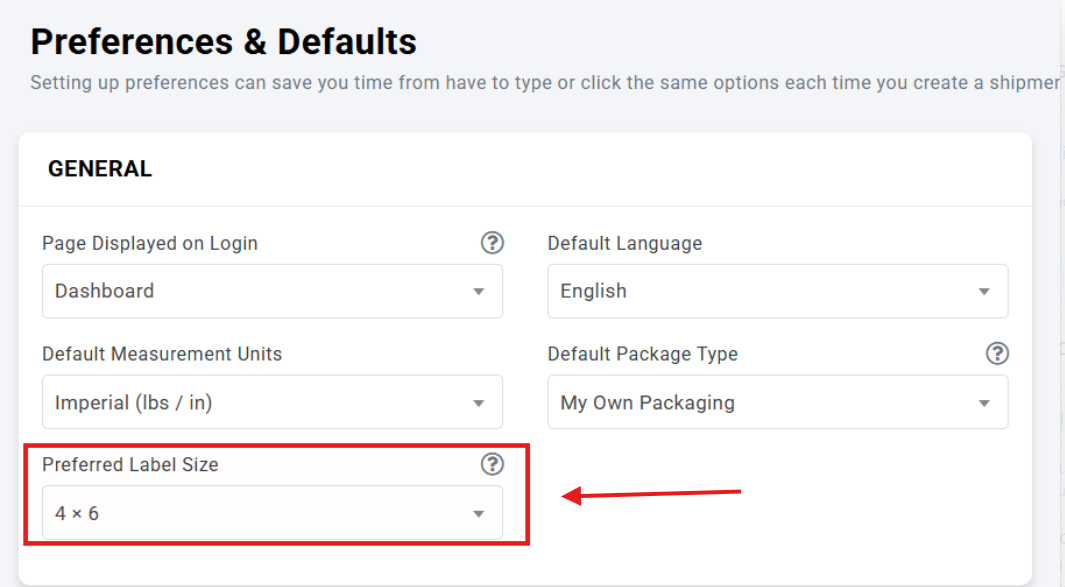
Your selected format will be used as the default when generating shipping labels through ShipTime.
Which Label Size Should I Choose?The best option depends on the type of printer you use:
- Thermal printer: A 4" × 6" label format is commonly used with dedicated shipping label printers.
- Standard office printer: A Letter-size format may be more convenient when printing on regular paper.
Choose the format that best matches your printer and label setup.
Need Help With Your Label Settings?If you're having trouble changing your label size or printing a shipping label correctly, contact our Heroic Support™ team. We can help you review your settings and get your labels ready to print.
Not using ShipTime yet? Create a free ShipTime account to compare discounted shipping rates from multiple leading couriers in one place.