
If you need another copy of a shipping label, you can reprint it from the shipment details in your ShipTime account.
Reprint a shipping label
1. Sign in to your ShipTime account.
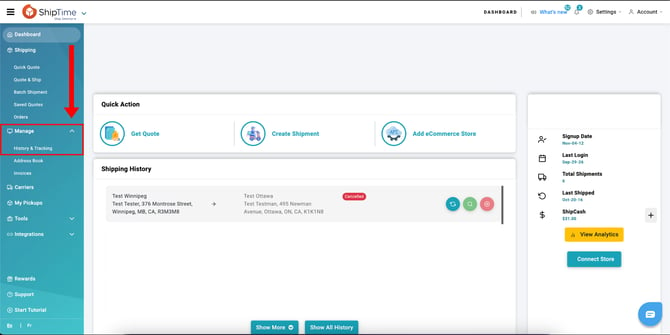
2. Go to History & Tracking.
3. Find the shipment you need and select it to open the shipment details.
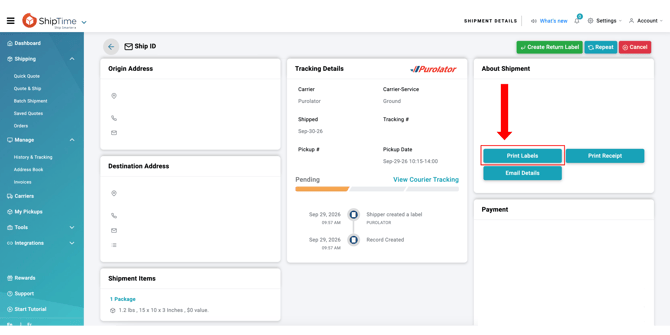
4. Select Print Labels to generate a PDF of the shipping label.
5. Open or save the PDF, then print the label as needed.
Email a shipping label
You can also email the shipment details and label directly from ShipTime.
1. Open the shipment in History & Tracking.
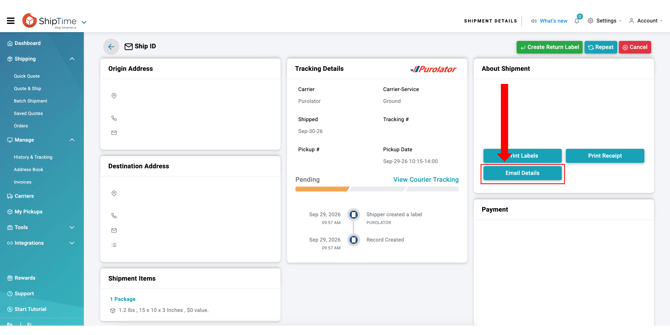
2. Select Email Details.
3. Enter a Subject.
4. Choose whether to send the email to Yourself or Others. If sending it to someone else, enter the recipient's email address.
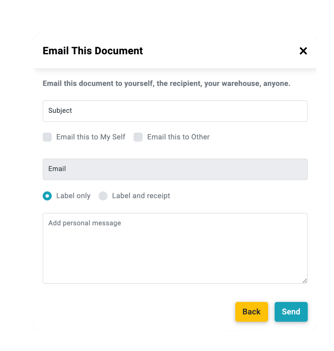
5. Select Send.
Need help reprinting a label?
Our Heroic Support™ team is here for you. Contact us by phone, live chat, or email for the answers you need to keep Shipping Smarter with confidence.
Not using ShipTime yet? Create your free ShipTime account to access discounted rates from leading couriers, all in one platform.