
The ShipTime Dashboard gives you quick access to common shipping tools, account activity, recent shipments, and support.
Use the numbered sections in the screenshot below to learn what each area of the Dashboard does.
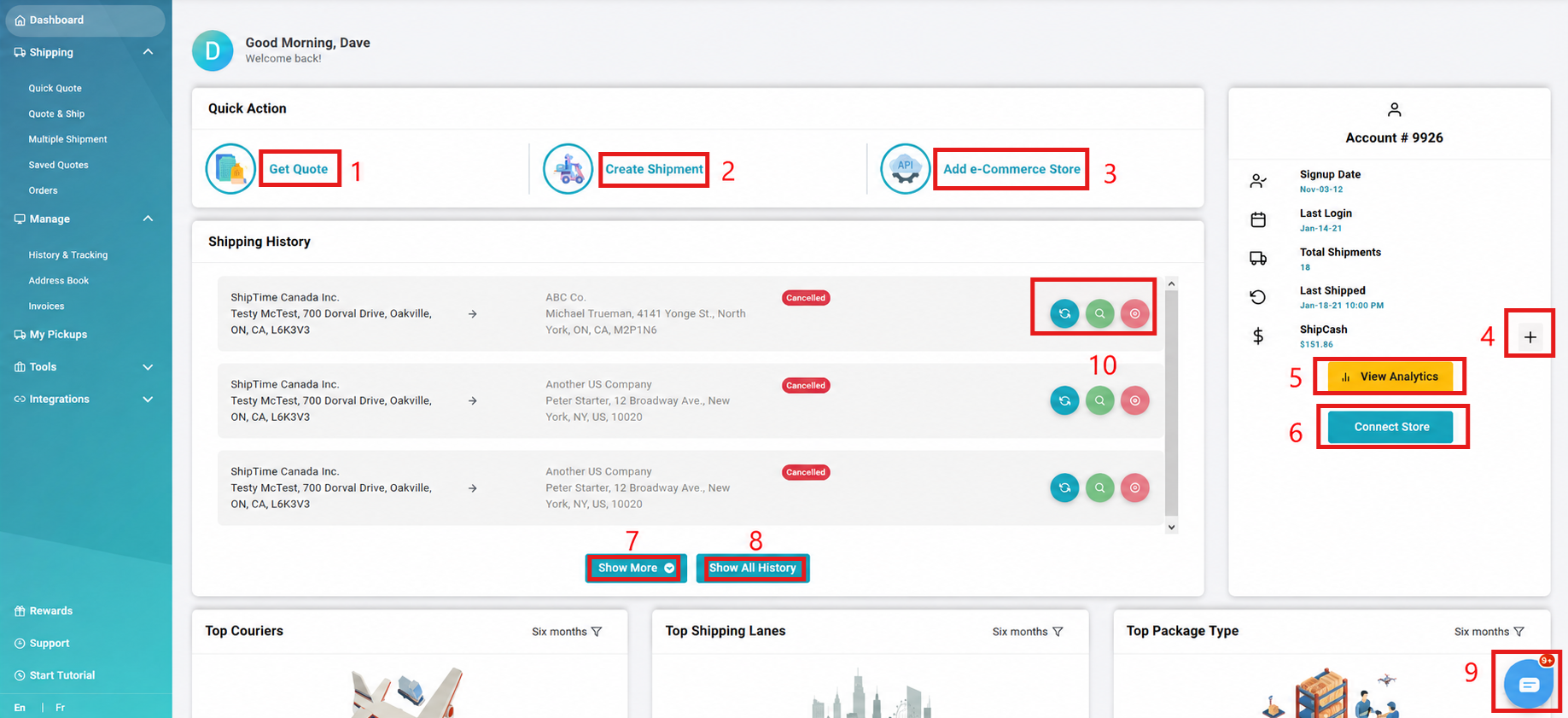
- Quick Quote
Start a Quick Quote to compare available shipping rates. - Quote & Ship
Start a new shipment and proceed through the full shipping process. - Connect an eCommerce Store
Link an eCommerce store to your ShipTime account. - Add ShipCash
Access the Payments page to add funds to your ShipCash account. - Shipping Activity
View a graph showing shipping activity associated with your account. - Shipping History
Review your recent shipments directly from the Dashboard. - Show More Shipments
Display additional shipments in the Shipping History section. - View History & Tracking
Open the full History & Tracking page to view and manage your shipments. - Heroic Support™ Chat
Start a live chat with our Heroic Support™ team when support is available. - Shipment Action Buttons
Depending on the shipment status, available actions may include:- Repeat: Creates a new shipment using the same address and shipment details.
- View: Opens the shipment details.
- Cancel: Cancels an eligible pending shipment. Shipments that are already in transit cannot be cancelled from this option.
Need Help?
If you have questions about using your ShipTime Dashboard, contact our Heroic Support™ team.