
You can add multiple users to your ShipTime account and manage whether each user is active or inactive.
This can help you give team members access when needed and remove access when it is no longer required.
Add a new user
- Log in to your ShipTime account.
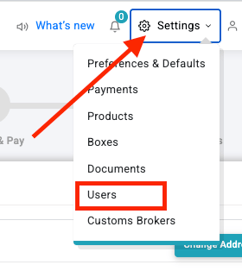
- Select Settings in the top-right corner.
- Select Users.
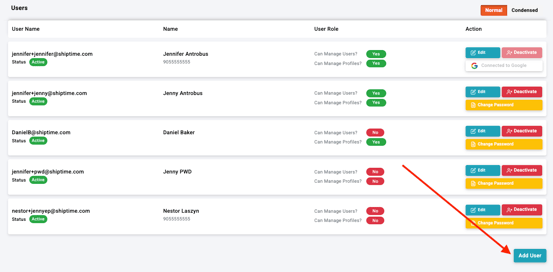
- Select Add User.
- Complete the New User form and select the appropriate options and permissions required for that user.
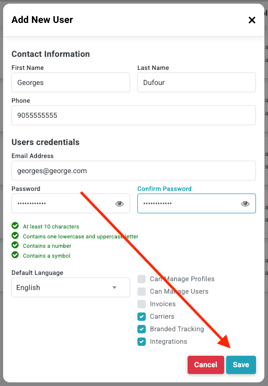
- Select Save.
Once the user has been added successfully, their status should appear as Active.

Deactivate a user
- Go to Settings > Users.
- Find the user you want to deactivate.
- In the Actions section, select Deactivate.
- Confirm the change.
The user’s status will change to Inactive.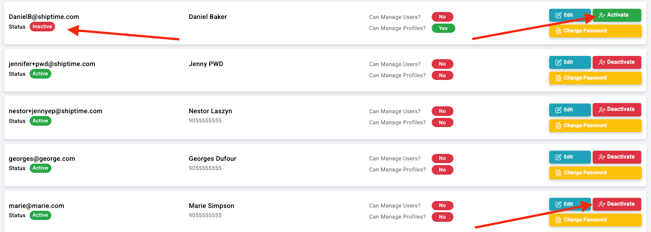
Reactivate a user
If you need to restore access for an inactive user:
- Go to Settings > Users.
- Find the inactive user.
- Select Activate beside their account.
The user’s status will return to Active.
Why manage user access?
Managing user status can help you:
- Control account access: Give team members access only when needed.
- Improve account security: Deactivate users who no longer require access.
- Keep your account organized: Maintain an up-to-date list of active users.
Need help?
If you need help adding users or managing access to your ShipTime account, contact our Heroic Support™ team.
Not using ShipTime yet? Create your free ShipTime account to access discounted rates from leading couriers, all in one platform.