
When you connect an eCommerce store to ShipTime, your orders are synced automatically during the initial integration.
If you need to pull in new or updated orders manually, you can sync them at any time from the Orders page.
Manually sync your orders
- Log in to your ShipTime account.
- From the left-hand menu, select Orders.
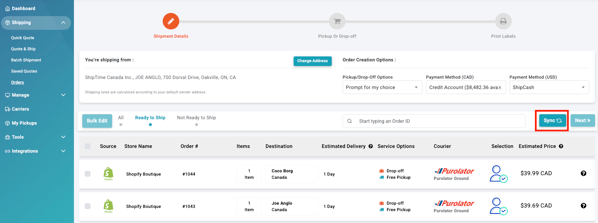
- On the right-hand side of the page, select Sync.
ShipTime will then pull in any new or updated orders from your connected eCommerce store.
Understand order sync statuses
Ready to Ship
The order contains the required information and is ready for shipment processing and label creation.
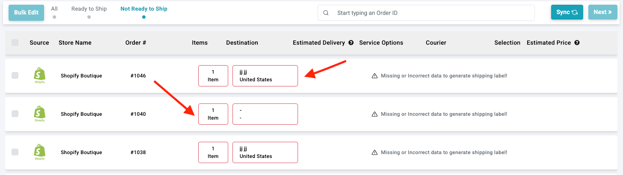
Not Ready to Ship
The order is missing required information.
ShipTime highlights the missing information in red. Once the required details are added or corrected, the order can move to Ready to Ship.
Why sync your orders?
Syncing helps keep your eCommerce orders current in ShipTime so you can:
- Manage fulfillment in one place: Access your connected store orders from ShipTime.
- Pull in updated order information: Manually refresh your orders when new or changed information needs to be synced.
- Prepare orders for shipping: Identify which orders are ready to ship and which still need information.
Need help?
If you have trouble syncing orders or working with your eCommerce integration, contact our Technical Support team at techsupport@shiptime.com.
Not using ShipTime yet? Create your free ShipTime account to access discounted rates from leading couriers, all in one platform.