
Shipping internationally often requires supporting documentation. To help reduce border delays and improve shipment accuracy, ShipTime allows you to upload, store, and attach customs documents directly to eligible international shipments.
This feature helps keep shipment setup efficient while giving your team better control over customs documentation and compliance.
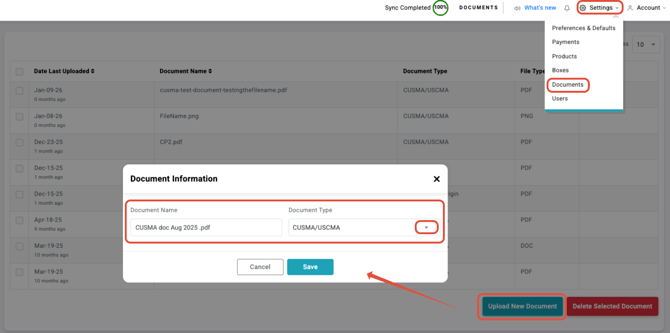
Manage Your Customs DocumentsShipTime includes a Documents page under Settings > Documents, where you can upload and manage commonly used trade documents, including CUSMA/USMCA certificates and other supporting files.
Saving documents in advance makes it easier to reuse approved files across shipments, reduce manual work, and maintain consistency.
For supported couriers, an Add Document button is available within the International Details section of the shipment flow. Documents are attached at the product-line level, allowing you to assign the correct files to each item in the shipment.
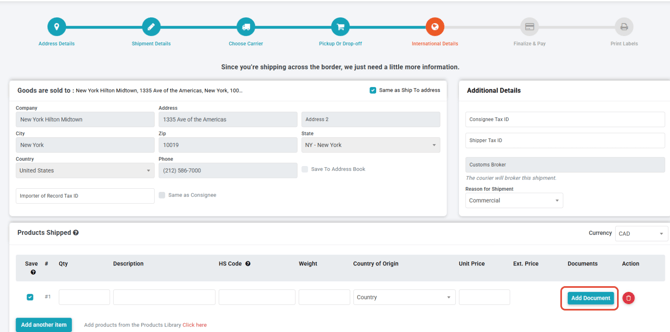
Step 1: Attach a Document
Within the product line, click Add Document.
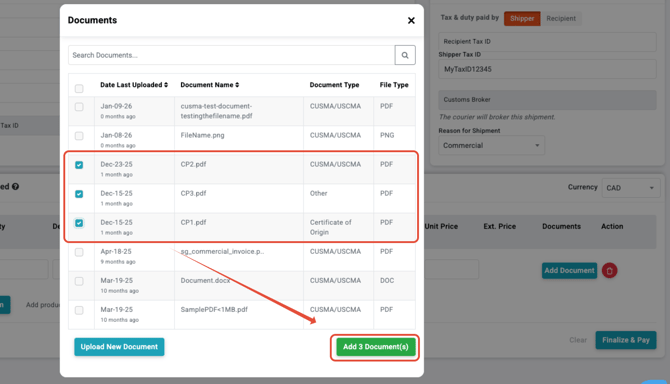
A list of your saved documents will appear. You can:
- select one or more existing documents
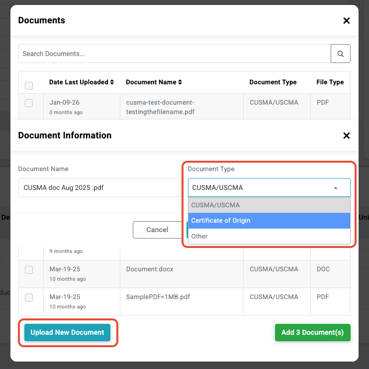
- upload a new document if needed
Be sure the correct Document Type is associated with each file. Examples include:
- CUSMA/USMCA
- Certificate of Origin
- Other
Using the correct document type helps couriers and customs authorities process your shipment more accurately.
Step 2: Review Your Document Attachments
Confirm that all required documents are attached to each product line in the shipment.
If your shipment contains multiple products, review each one carefully and add any additional documents needed.
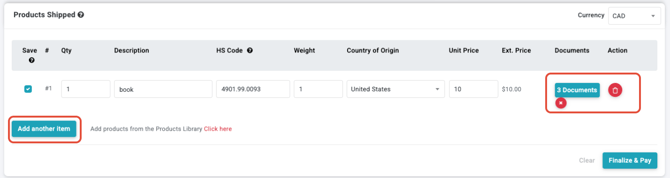
Step 3: Finalize the Shipment
Once all documents have been attached, complete the remaining international shipment details and proceed to Finalize & Pay.
Supported Couriers and Recommended File FormatElectronic document submission is currently available, where applicable, for:
- DHL
- FedEx
- UPS
We recommend uploading documents as PDF files, since PDF format is accepted across all supported couriers. Other file types, such as JPG, may not always be accepted and could cause processing issues.
Need Help?If you have questions about adding customs documents, preparing international shipment paperwork, or understanding customs requirements, our Heroic Support™ team is here to help.
If you’re not yet shipping with ShipTime, you can sign up here to access discounted rates and tools that simplify international shipping.