
The Orders page lets you review and prepare orders from your connected eCommerce stores before turning them into ShipTime shipments.
From this page, you can confirm the Ship From address, choose pickup preferences, review payment defaults, search for specific orders, compare shipping costs, and update the selected carrier before proceeding.
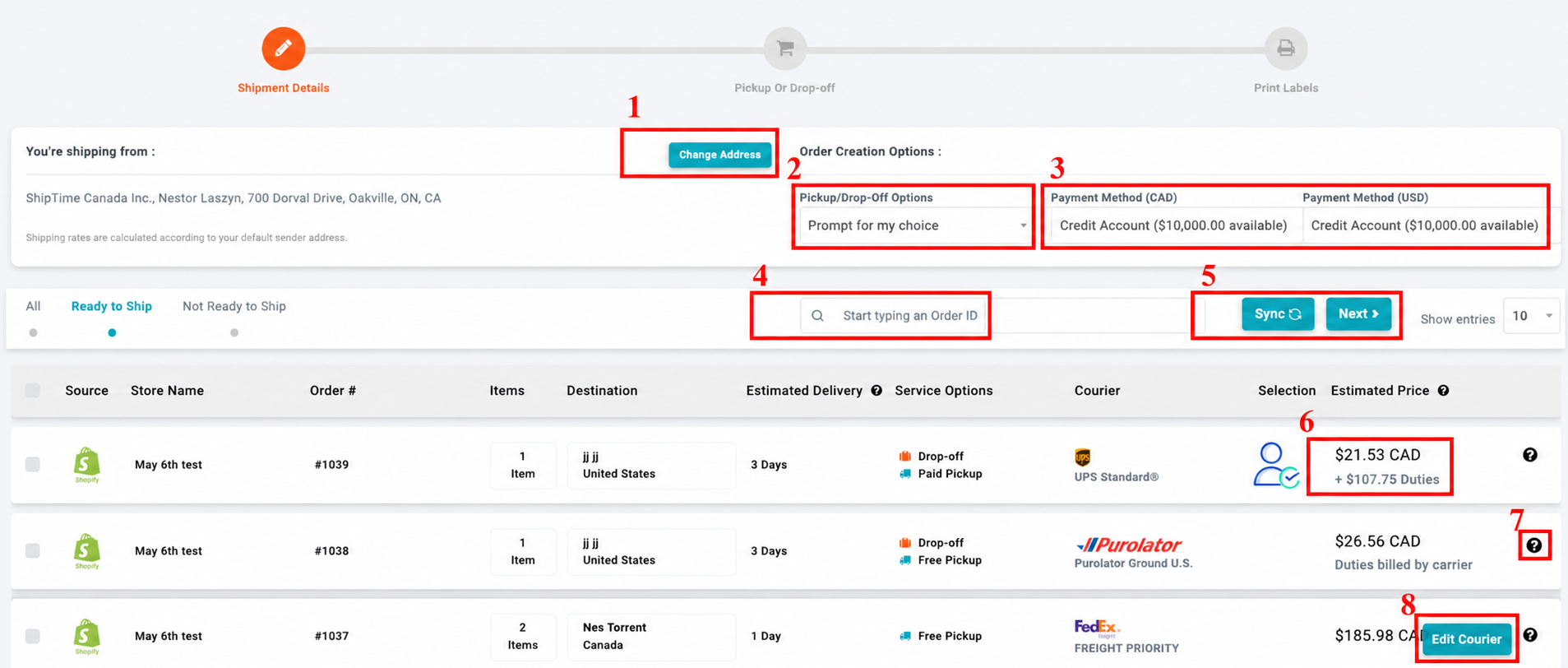
1. Change Address
Use Change Address to update the Ship From address that will be used for the selected order or shipment.
Make sure the origin address is correct before proceeding, as it can affect:
- Available Carrier Services
- Shipping Rates
- Pickup Availability
- Taxes and Other Applicable Charges
2. Pickup Options
Choose how the shipment will be provided to the carrier.
You can:
- Set a Default Pickup Option for Your Orders
- Select the Pickup or Drop-Off Preference Individually for Each Shipment
Available pickup options may vary depending on the carrier and service selected.
3. Payment Defaults
Review or update the payment defaults used for orders shipping in CAD or USD.
This allows you to confirm the appropriate payment method before the order is processed.
If different payment methods are used for Canadian and U.S. shipments, review the applicable default before continuing.
4. Search Bar
Use the Search Bar to quickly locate a specific order by entering its Order ID.
This can be especially useful when you have a larger number of synced orders and need to find one specific transaction.
5. Sync / Next
Use these options to manage your connected-store orders.
- Sync: Refresh the Orders page and bring in available orders from your connected eCommerce store.
- Next: Continue with the selected orders and proceed to the next stage of the shipping process.
Before selecting Next, review the order details to make sure the correct orders and shipping options are selected.
6. Price Breakdown
Review the displayed shipping price for each order.
For supported international shipments, the displayed amount may also include applicable duties and taxes.
The total shown can vary depending on:
- Origin and Destination
- Carrier and Service
- Shipment Weight and Dimensions
- International Customs Information
- Applicable Duties and Taxes
7. Price and Fee Details
Move your cursor over the question mark (?) beside the price to view a more detailed breakdown of the applicable charges.
This can help you understand how the displayed total was calculated before creating the shipment.
8. Edit Courier
Select Edit Courier if you want to requote the order and choose a different carrier or service.
This lets you review other available shipping options before finalizing the order.
Updating the courier may change:
- Shipping Rate
- Estimated Transit Time
- Available Pickup or Drop-Off Options
- International Charges, Where Applicable
Before Proceeding
Before creating the shipment, it is a good idea to confirm:
- The Correct Ship From Address Is Selected
- The Pickup or Drop-Off Option Is Appropriate
- The Correct Payment Default Is Being Used
- The Selected Order Information Is Accurate
- The Carrier and Service Meet Your Shipping Needs
- The Displayed Charges Have Been Reviewed
Need Help?
If you have questions about syncing store orders, reviewing shipping options, or processing an order through ShipTime, contact our Heroic Support™ team.
For technical issues with an eCommerce integration or order synchronization, you can also contact techsupport@shiptime.com.