
The Quick Quote page is where you enter shipment details, confirm the origin and destination addresses, and select package and delivery options before comparing available rates.
Use the numbered sections in the screenshot below to learn what each option does.
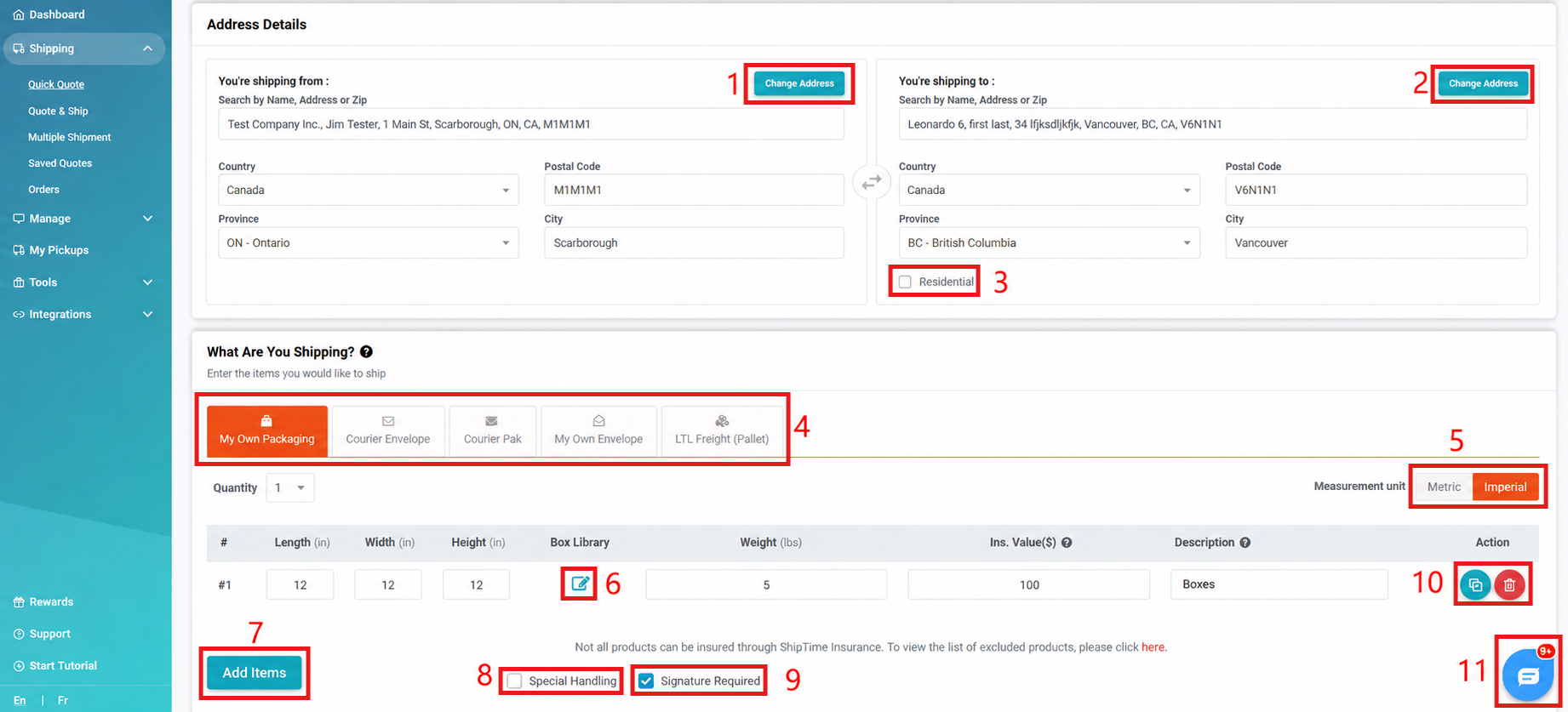
- Shipping From Address
View or change the address the shipment is being sent from. - Shipping To Address
View or change the shipment destination address. - Residential Address
Select this option when the destination is a residential address. Providing the correct address type helps the carrier apply the appropriate service and can help avoid unexpected carrier adjustment fees. - Package Type
Select the package type that best matches what you are shipping. - Measurement Units
Choose the measurement system you want to use:- Metric: kilograms (kg) and centimetres (cm)
- Imperial: pounds (lb) and inches (in)
- Box Library
Select a frequently used package configuration that you previously saved under Settings > Boxes. - Add Items
Add another package to the quote. - Special Handling
Select Special Handling when applicable, such as when the shipment is oversized, irregularly shaped, or does not fit into a standard cardboard box.Examples can include tires or other non-standard packaging. - Signature Required
Select this option to request that the carrier obtain a signature from someone at the destination as part of the delivery. - Package Action Buttons
Use the available buttons to manage individual packages:- Copy: Duplicates the package and adds it as another item to the quote.
- Delete: Removes the package from the quote.
- Chat Panel
Open a live chat with our Heroic Support™ team when support is available.
Need Help?
If you have questions about entering your shipment details or selecting the correct options, contact our Heroic Support™ team.