
ShipTime’s Quote & Ship tool guides you through the complete shipment process, from entering addresses and package details to choosing a carrier, arranging pickup or drop-off, and completing payment.
Use this guide to understand what is available at each stage.
Address Details
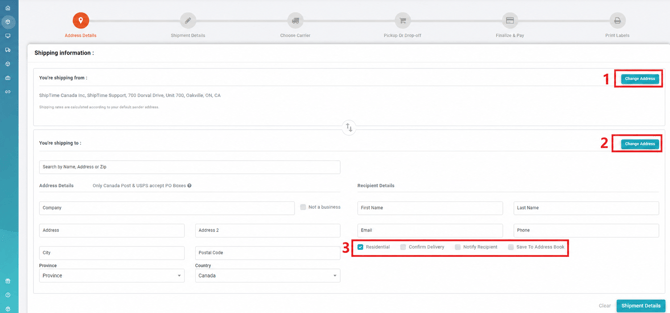
Enter or review the origin and destination information for your shipment.
- Shipping From Address: View or change the address the shipment is being sent from.
- Shipping To Address: Enter or update the recipient’s destination address.
Recipient Options
Additional options may include:
- Residential Address: Select this option when the destination is residential. Providing the correct address type can help avoid unexpected carrier adjustment fees.
- Confirm Delivery: Send a delivery confirmation email to your email address when the shipment is delivered.
- Notify Recipient: Send tracking information to the recipient by email.
- Save to Address Book: Save the recipient’s information for future shipments.
Shipment Details
Enter the package information and select any additional shipping options.
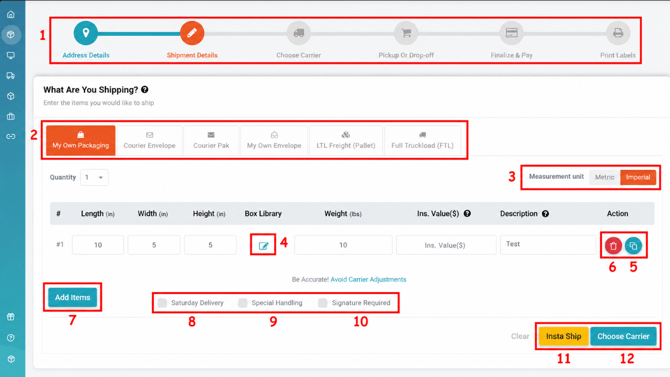
- Shipment Progress Bar: Shows your current step. You can select a previous step to return and make changes.
- Package Type: Select the package type that best matches your shipment.
- Measurement Units:
- Metric: kilograms (kg) and centimetres (cm)
- Imperial: pounds (lb) and inches (in)
- Box Library: Select a saved box configuration from Settings > Boxes.
- Copy: Duplicate a package and add it to the shipment.
- Delete: Remove a package from the shipment.
- Add Items: Add additional packages.
- Saturday Delivery: Select this option when you want Saturday delivery for the shipment, where available.
- Special Handling: Select this option when applicable for oversized, irregular, or non-standard packages, such as tires.
- Signature Required: Request that the carrier obtain a signature at delivery.
Proceed Options
Choose how you want to continue:
- Insta Ship: Automatically selects the least expensive available service and skips the carrier-selection step.
- Choose Carrier: Continue to the carrier-selection page and choose the service yourself.
Choose Carrier
Review the available carrier and service options.
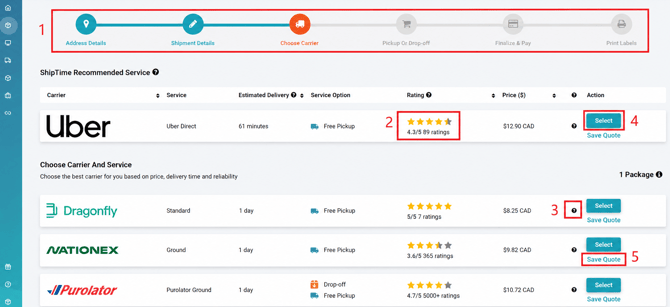
- Shipment Progress Bar: Shows where you are in the shipment process.
- Service Rating: View the rating displayed for the carrier service.
- Details: View a breakdown of the applicable service charges.
- Select: Choose the carrier and service you want to use.
- Save Quote: Save the quote, including its address details and carrier selection, under Saved Quotes for later use.
Pickup or Drop-Off
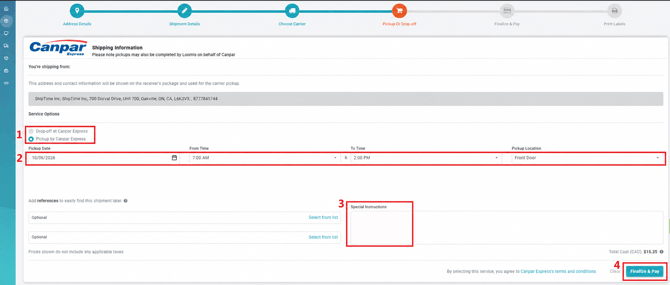
Choose how the shipment will be provided to the carrier.
Pickup
Select Pickup to schedule a courier pickup using the available date and time options.
Drop-Off
Select Drop-Off if you plan to bring the shipment to an authorized carrier location.
Use the available link to find a nearby drop-off location.
Special Instructions
Enter any applicable pickup or delivery instructions for the carrier.
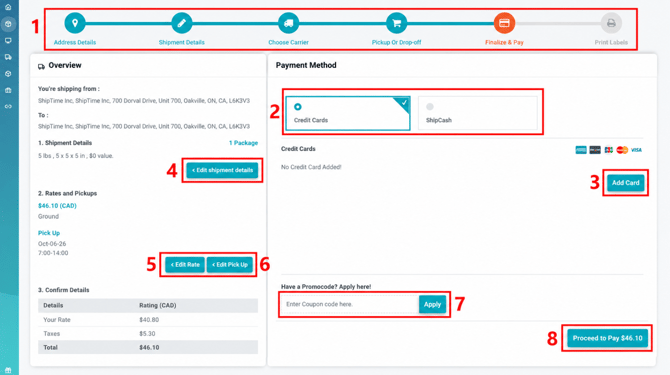
Finalize & Pay
Review the shipment and payment information before completing your purchase.
- Shipment Progress Bar: Shows that you have reached the final stage.
- Payment Method: Select a saved payment method or add a new one.
- Edit Shipment Details: Return to the shipment details to make changes.
- Edit Rate: Return to Choose Carrier and select a different service.
- Edit Pickup: Return to the pickup or drop-off stage.
- Promo Code: Enter and apply an eligible promotional code.
- Proceed to Pay: Complete payment and generate your shipping label.
Helpful Quote & Ship Features
Quote & Ship also allows you to:
- save frequently used addresses
- reuse saved box dimensions
- compare available carrier services
- request Saturday Delivery where available
- select Special Handling or Signature Required when applicable
- save quotes for later
- choose between pickup and drop-off
- apply eligible promo codes
- use Insta Ship when you want ShipTime to select the least expensive available service
Need Help?
If you have questions while creating a shipment, contact our Heroic Support™ team.